


American NOAA satellites that we covered in my first project are kind of the starting point for any satellite radio enthusiast. But there are other very similar satellites that deliver better images using roughly the same gear as NOAA, the Russian METEOR satellites 🇷🇺.
Who Are the METEOR?
The METEOR satellites started as Soviet, then Russian weather satellites. Since 1964, about 70 models have been launched. For this article, we’re focusing only on the latest series, METEOR-M, and here’s a brief history:

Like their NOAA counterparts, the METEOR-M series orbits at roughly 800km altitude and follows a polar orbit, more precisely, a sun-synchronous orbit. That means they always face the Sun 🌞. For more information on orbit types, check out this lesson.

The main difference from NOAA is in the transmission mode: METEOR-M uses LRPT, whereas NOAA used APT.
For this article, we’re interested in two METEOR-M satellites:

137.1 and 137.9MHz, and its symbol rate varies between 72 and 80Kbit/s.To verify its status, you can use this site, which shows the current state of the satellite as of 09/02/2024.
Time to Listen
On the antenna side, I use a QFH for
137MHz. It features left-hand circular polarization, ideal for METEOR since they transmit with right-hand circular polarization.
For reception, we use SatDump. I won’t go into all the configuration details (I’ve already done a tutorial on SatDump here).First, using the
Tracking section in SatDump or via my tool, check when the satellite will pass by. This section also shows the satellite's current elevation.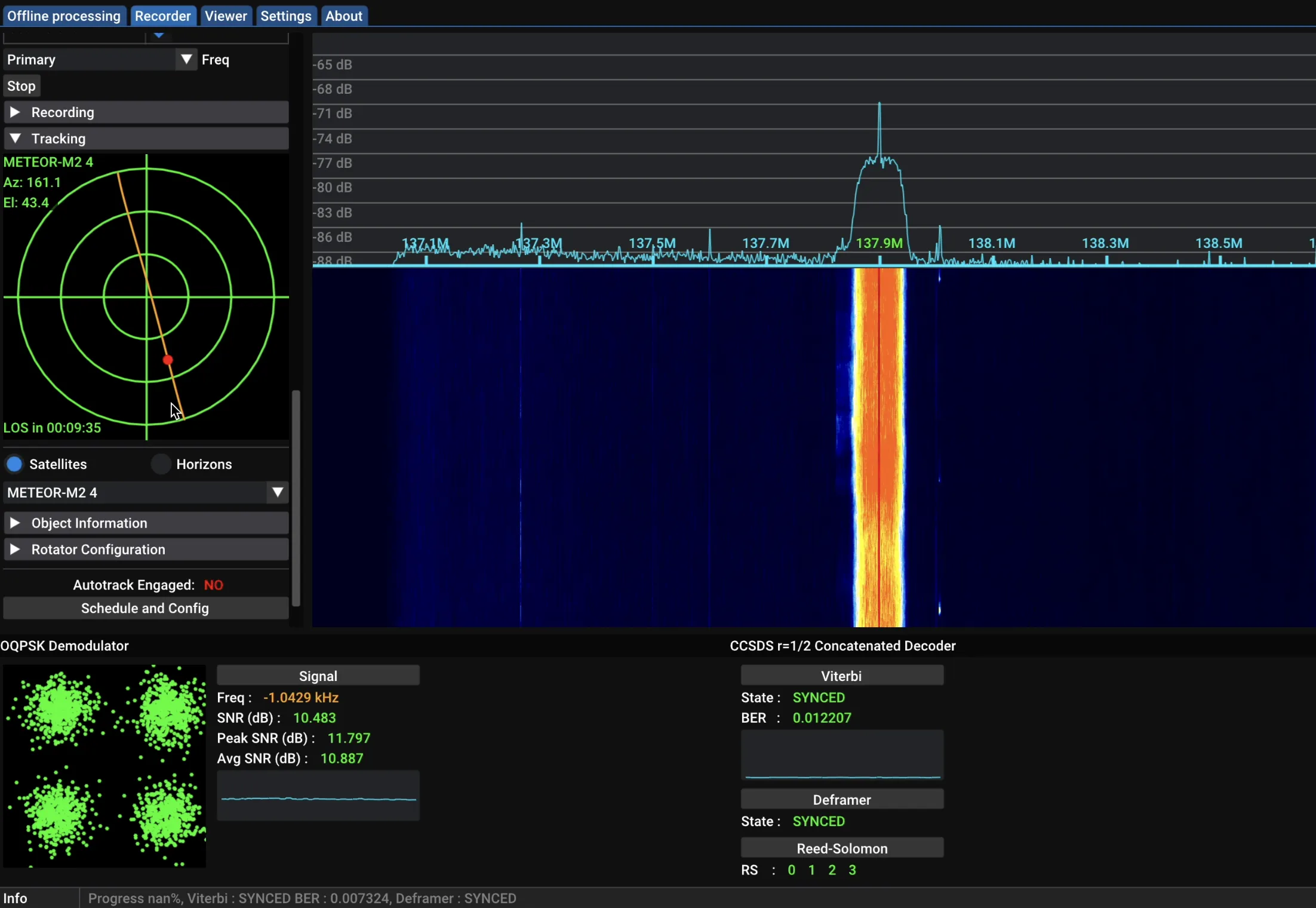
In the
Device section, select your SDR receiver, in my case, an SDRPlay RSP1B, then hit Start to begin recording.
I recommend adjusting the FFT Min and FFT Max values in the FFT section: set FFT Min low enough that noise is barely visible, and then set FFT Max to FFT Min + 30.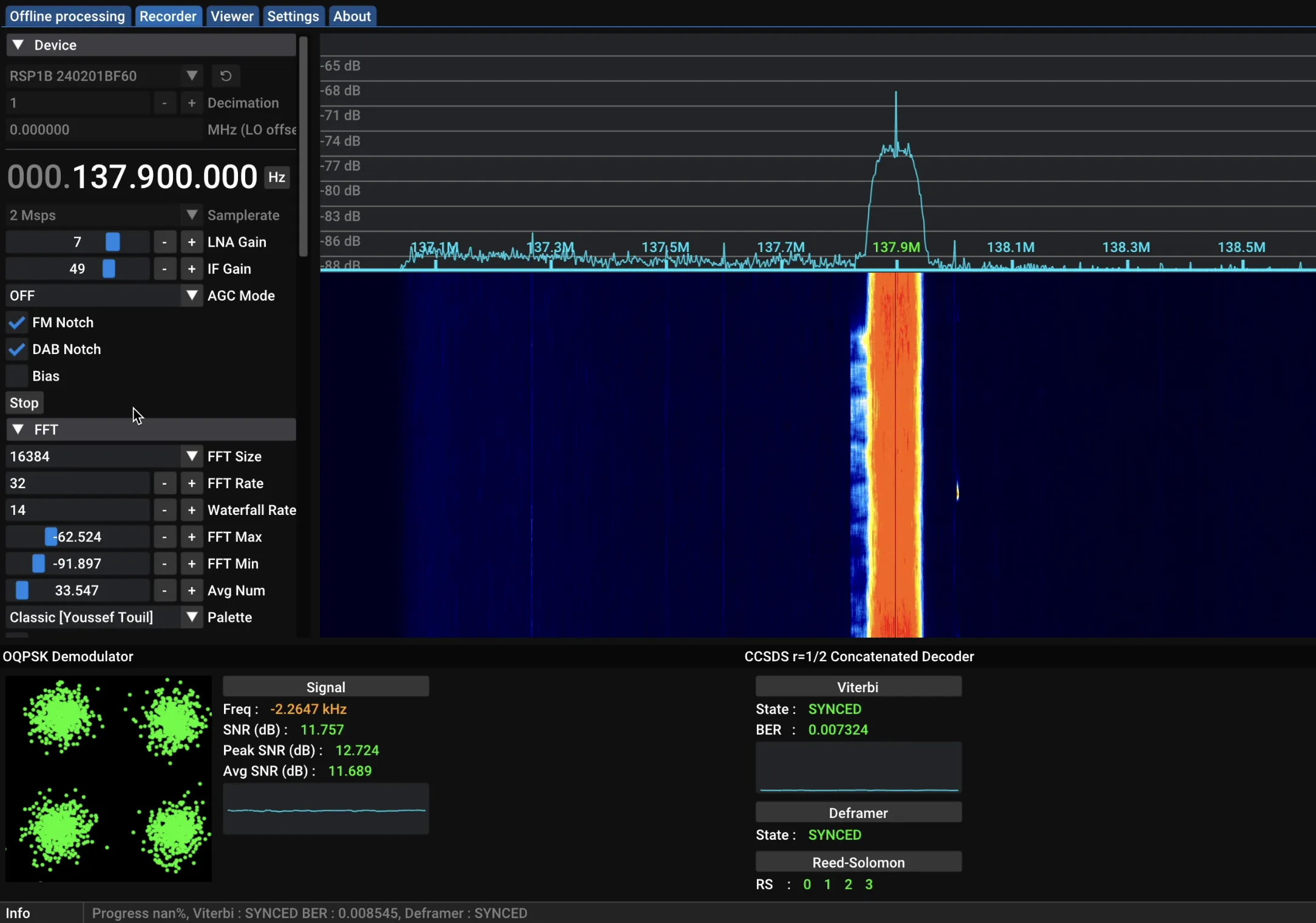
In the
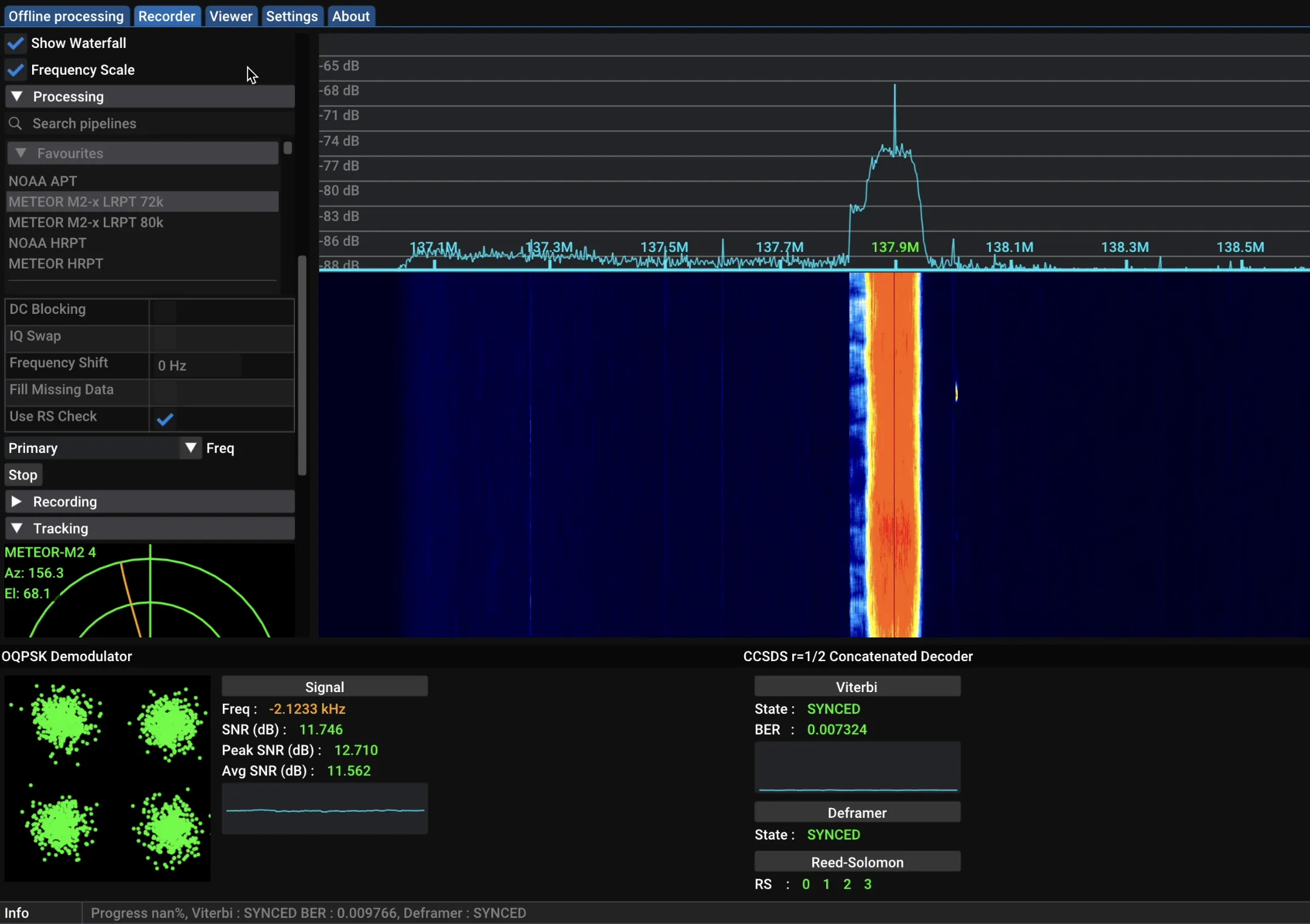
Click Start again to begin the decoding process. If everything is set correctly, you should see the signal from METEOR M2-4 🛰️! To ensure the decoding is going smoothly, check that:
Processing section, choose METEOR M2-x LRPT 72k. Set Primary to 137.900MHz and Backup to 137.100MHz.Click Start again to begin the decoding process. If everything is set correctly, you should see the signal from METEOR M2-4 🛰️! To ensure the decoding is going smoothly, check that:
- The SNR (displayed at the bottom) is ideally 10 or above. Even if it’s >2, you should still see something.
- The
Viterbisection at the bottom-right is all green, indicating good performance. 😄
⚠️ Once the satellite has passed, click Stop in the
Processing section before stopping the recording in the Device section. Reversing this order might cause you to lose the recorded data.After the pass, wait a few moments while SatDump finishes decoding everything, then switch over to the
Viewer tab to see your images and apply post-processing.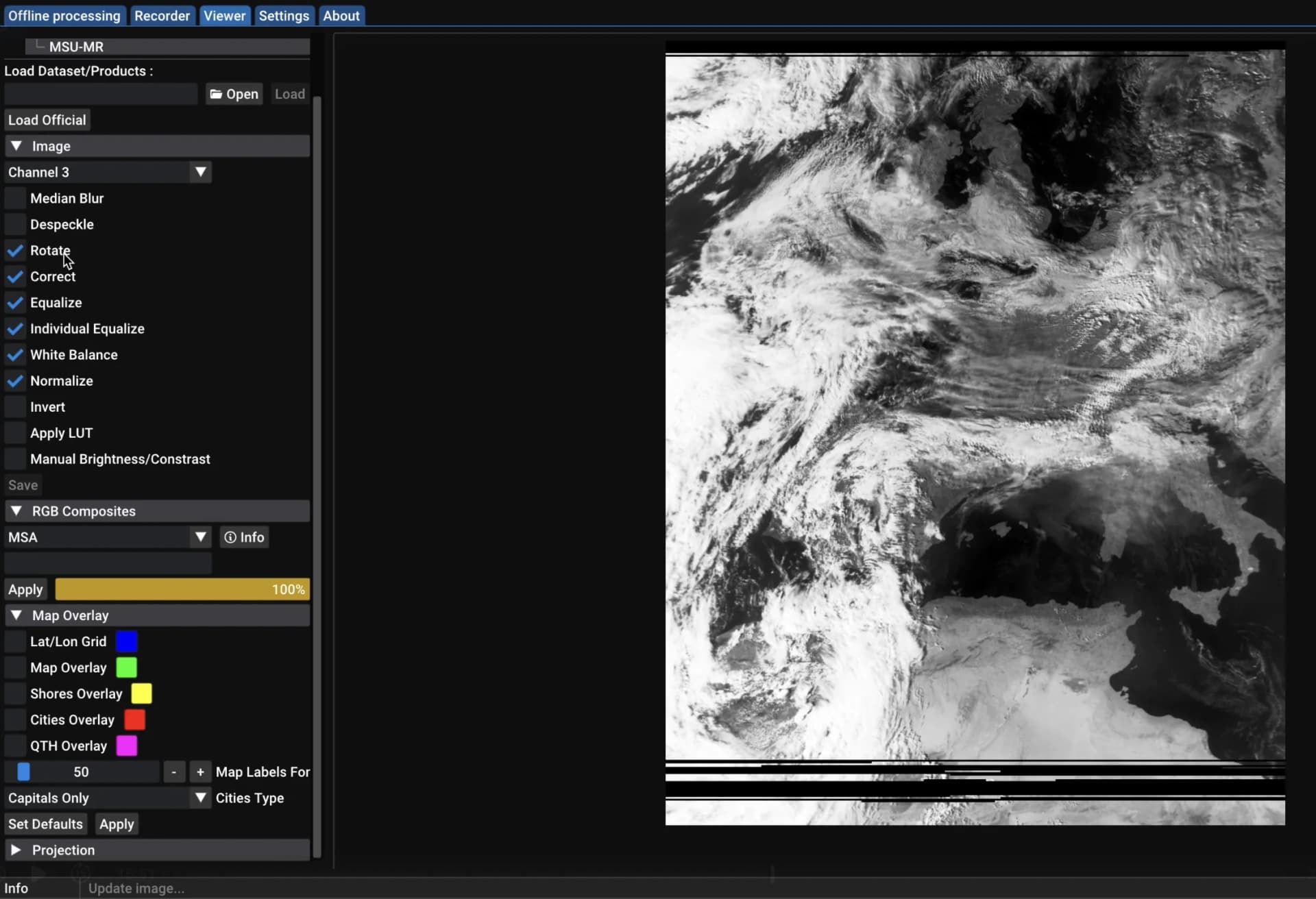
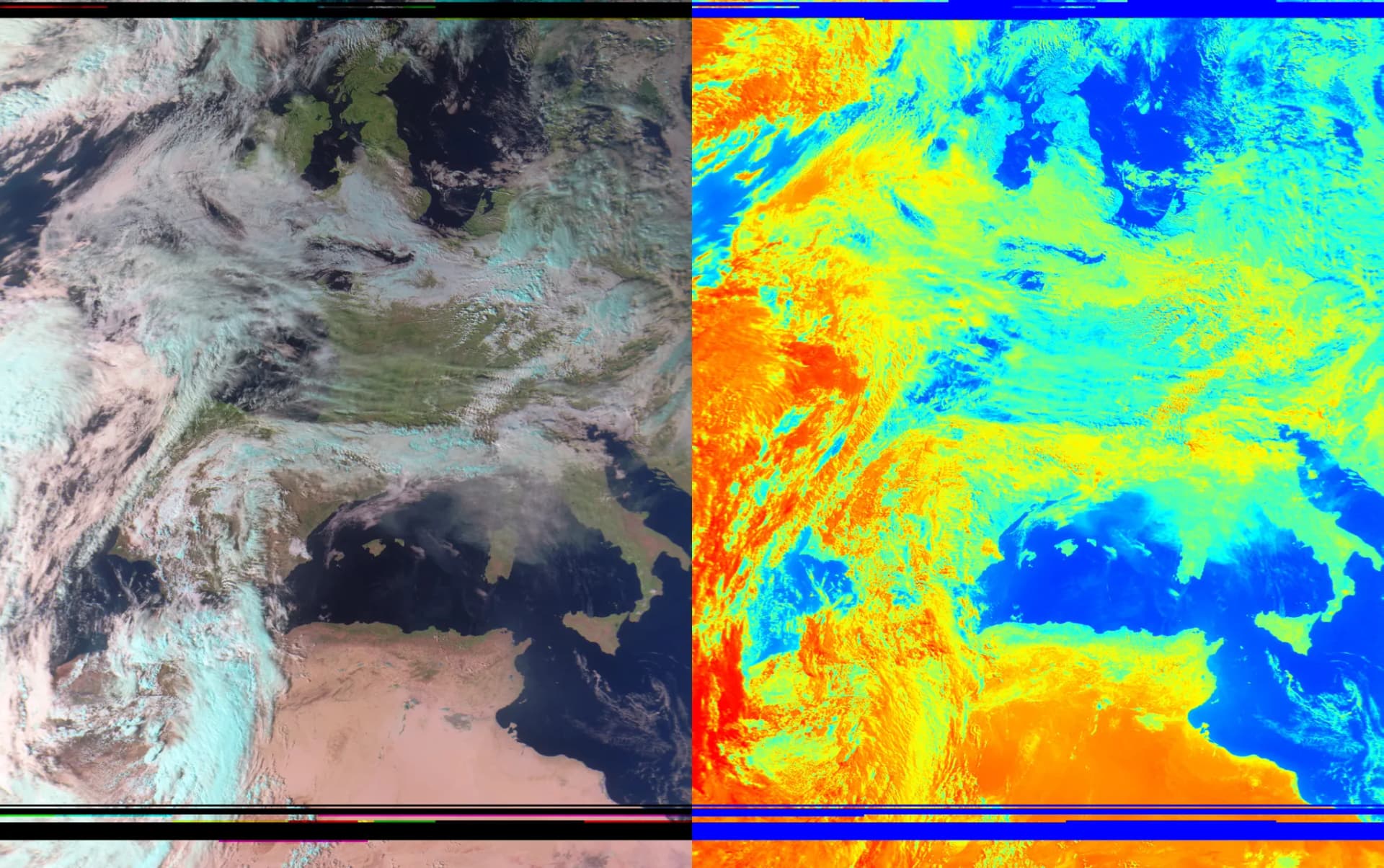
The image quality is really impressive compared to NOAA’s.
Now it’s your turn, have fun and happy decoding!